Tiny Scanner - PDF Scanner App
- 4.6
- Rating
- 10.00M
- Installs
- Free
- Price

 Analysis by App-foxy
I reach for Tiny Scanner when I need to turn a paper document into something I can actually use before I get back to a desk. It is a business app from TinyWork Apps, focused on mobile scanning rather than trying to become a complete office suite. That narrow purpose is also its main appeal: the experience is built around capturing pages, preparing them for reading, signing them when needed, and sending the finished document onward.
After using it as a practical document tool, my view is straightforward. It is a good fit for people who regularly deal with receipts, forms, notes, invoices, or signed paperwork and want a quicker alternative to photographing each page with the normal camera. It is less compelling for someone who only scans a page once in a while, or for anyone who needs advanced document management, detailed text recognition, or a full desktop replacement. The important question is not whether it can scan a page; it is whether its focused workflow matches the way you handle documents.
What I look for before choosing a mobile scanner
My first decision criterion is the quality of the finished page, not the speed of taking the picture. A useful scanner should make a sheet look like a document instead of a casual photo. That means the edges need to be easy to frame, the text should remain comfortable to read, and the result should be suitable for sharing. Tiny Scanner is designed around that expectation, so I found it more appropriate for paperwork than the default camera app.
You May Also Like

 Blood Strike: 2.5 Anniversary
Blood Strike’s Loadouts Turn Every Drop Into a Tactical Gamble
A close look at Blood Strike’s custom loadouts: how fast access to signature weapons reshapes its battle royale rhythm, rewards preparation, and narrows the gap between fights.

 Pandora - Music & Podcasts
Pandora’s Music Is Easy to Start, but Harder to Recover
Pandora’s strength is its low-effort path from a seed to a station. Its weak spot is how much confidence it asks you to place in connection, setup, and quiet recovery.

 8 Ball Pool
 Is Built on Rivalries, Rematches, and Routine
A close look at the rivalries, rematches, shared routines, and unanswered safety questions that turn a quick pool match into a persistent mobile community.

 Samsung Music
’s Quiet Strength Is Playing What You Already Own
Its reach comes less from spectacle than from dependable access to a personal library. That simplicity is both the app’s strongest retention engine and its ceiling.

 AccuWeather: Weather Radar
AccuWeather Review: A Quick, Clear Forecast for Everyday Decisions
For everyday plans, the best forecast is the one you can understand quickly. AccuWeather makes rain timing, radar, and local conditions easy to act on, with a few trade-offs.

 Hill Climb Racing
Why Hill Climb Racing Still Turns Crashes Into One More Run
A tiny car, a bumpy hill and one more upgrade: Hill Climb Racing keeps resurfacing because its simple chaos makes every near-miss feel personal.
More From Our News Desk



The second criterion is how much effort comes after capture. A scanner can produce a sharp image and still be frustrating if I have to repeat pages, organize them manually, or search through a confusing interface. Tiny Scanner keeps the central action easy to understand: capture the page, check the result, adjust it when necessary, and prepare the document for use. That simplicity matters when I am standing beside a printer, sitting in a waiting room, or working from a kitchen table.
I also consider the type of documents I handle. A single-page receipt has different needs from a multi-page contract. A handwritten note is different from a form with small printed text. A useful app should not force every document into exactly the same workflow. In my experience, this app is strongest for ordinary paperwork that needs to become a clean, portable document quickly.
Another practical question is whether the app belongs on my phone permanently. Tiny Scanner is free to install and is rated for Everyone, so it is easy to try without committing money at the start. Its broad availability is reflected in a 4.6 average from around 485 thousand ratings and more than 10 million installs. Those figures suggest that it has become a familiar choice for mobile scanning, although popularity alone does not decide whether it suits a particular workflow.
Capture first, correct second
One habit improved my results more than any setting: I stopped treating the first capture as final. I place the document on a surface with clear contrast, hold the phone parallel to the page, and leave a little space around the edges. Then I inspect the corners before moving on. This is especially useful for forms, because a clipped checkbox or missing signature line can make an otherwise attractive scan useless.
The app works best when I give its scanning process a reasonable original. It can help turn a page into a more document-like result, but it cannot rescue paper that is folded over important text, covered by a hand, or photographed in poor light. That is not a special weakness of this app; it is a reminder that mobile scanning still begins with the camera and the person holding it.
For several pages, I prefer to keep the whole set together rather than creating separate files immediately. A short application form, a receipt with supporting paperwork, or a signed agreement is easier to send when the pages stay in one logical document. This is one of the less obvious advantages of using a dedicated scanner: the task feels like preparing paperwork, not collecting unrelated images in a gallery.
Why the focused workflow works
The strongest part of Tiny Scanner is its sense of purpose. The app is not asking me to learn a large productivity system before I can scan a page. I can open it with a specific job in mind and stay within that job. For many people, that is more valuable than a long list of advanced tools that are rarely used.
I also like the separation between capturing a page and deciding what to do with it. I can check whether the document is readable before sending it, which avoids the common mistake of discovering later that one page is dark, tilted, or incomplete. That small review step is important when the recipient is an employer, landlord, school, insurer, or government office.
Signing is another reason the app can be useful in everyday work. When a document arrives while I am away from a computer, I can scan the relevant page, add the required signature, and send it back without building a complicated desktop setup. I would still read the document carefully before signing, of course. The convenience is in removing the printing-and-rescanning loop, not in making the decision itself.
The app is also a sensible bridge between physical and digital work. I have used this kind of workflow for paper notes that I wanted to keep with project files, receipts needed for reimbursement, and forms that were easier to complete on paper than on a tiny phone screen. The value is not just the scan; it is the ability to move a physical page into the next step without waiting for a traditional scanner.
Everyday situations where I would recommend it
Imagine receiving a two-page form at the end of a workday. You fill it out by hand, sign it, and need to return it before the office closes. With the normal camera app, you might take separate pictures, crop them later, and hope the recipient accepts a loose collection of images. With Tiny Scanner, I would capture both pages as one document, inspect the borders, add the signature if needed, and send the result while the details are still fresh.
Another useful situation is a small business owner sorting receipts during a trip. The goal is not artistic image quality; it is creating readable records before paper disappears into a bag. Scanning each receipt soon after purchase reduces the chance of losing a date, total, or supplier name. The app is particularly convenient here because it turns a phone into a lightweight paperwork station instead of requiring a separate device.
Students can also benefit when a classmate shares handwritten notes or when a printed handout needs to be kept with digital study material. I would not expect a scan of handwriting to become searchable text automatically, but I would use the app to preserve the page clearly and share it without relying on a stack of loose photos.
For remote workers, the app helps when a physical signature or paper document appears unexpectedly. It is not a replacement for a company’s controlled document system, but it can cover the gap between home paperwork and the formal workflow used by an organization.
Where the app is less convincing
The focused design has limits. If I need to manage a large archive, apply detailed naming rules, search inside documents, or coordinate files across a team, I would look beyond a simple mobile scanner. Tiny Scanner can help create the document, but the rest of the process may belong in cloud storage, a document-management platform, or an office application.
I would also be cautious with long, visually complex documents. A mobile phone is convenient, but it is not always the best tool for a thick stack of pages, delicate originals, or paperwork that must meet strict professional standards. A flatbed or sheet-fed scanner is usually a better choice when consistency, batch handling, and physical protection matter more than portability.
There is also a human cost to scanning on a small screen. Reviewing a multi-page document page by page can become tiring, especially when the phone display is small or the lighting is poor. I find the app most comfortable for short and medium jobs. For a large archive, I would rather use hardware designed for repetitive scanning and then use mobile scanning only for exceptions.
Users should also pay attention to the payment model. The app itself is free, but optional purchases range from $1.99 to $199.99 per item. That does not automatically make it poor value, yet I would check which tools are included in the version I plan to use and whether my workflow depends on paid functions. Someone who only needs occasional basic scans may be perfectly satisfied without spending anything; a frequent professional user should evaluate the total cost before making it part of daily operations.
How it compares with the usual alternatives
The camera app is the obvious alternative because it is already on the phone. It wins when the task is a quick visual record, such as photographing a whiteboard or keeping a temporary copy of a label. Tiny Scanner wins when the result needs to look and behave more like paperwork. Its dedicated approach encourages me to check the page, keep related pages together, and prepare the file for sharing instead of leaving the work in a photo roll.
A cloud-drive scanner may be the better choice for someone whose entire document routine already lives inside one storage service. Keeping scans close to existing folders can reduce handoffs, and that matters in a team environment. I would choose Tiny Scanner when I want a more direct scanning session or when I am not committed to one particular storage ecosystem. I would choose the cloud-integrated option when automatic filing and collaboration are more important than a focused capture experience.
Office suites can be stronger for people who need scanning alongside editing, spreadsheets, signatures, and team review. Their advantage is breadth. Their drawback is that the scanning step may feel like one small feature inside a much larger application. Tiny Scanner is easier to justify when scanning is the job and the other tasks happen elsewhere.
Dedicated scanner hardware remains the right answer for volume. If I were digitizing boxes of paperwork, I would not rely on a phone as the primary tool. Hardware can be faster and more consistent for repeated pages, while a mobile app is better for mobility, urgent forms, and occasional documents. These are not competing choices in every situation; many people can use hardware at home or work and keep Tiny Scanner for everything that happens away from it.
Small workflow choices that make a real difference
My first practical tip is to create a naming habit before scanning several documents. I use a simple pattern based on the document purpose and date, rather than accepting a vague filename and promising to fix it later. This makes the app more useful as part of a record-keeping routine, even though the organization itself still depends on my discipline.
My second tip is to review the final page, not only the first one. Multi-page mistakes are easy to miss because the opening page looks fine. I check every page for clipped edges, unreadable corners, and accidental blank captures before sending the document. This takes less time than asking someone to resend paperwork or discovering that a deadline has passed.
My third tip is to separate capture conditions from editing expectations. I scan near a window or under even light, flatten curled paper, and keep my fingers away from the edges. That produces a better result than trying to fix shadows afterward. A dedicated scanner helps, but good physical setup still determines much of the final quality.
A fourth useful trade-off involves privacy and convenience. I avoid scanning unrelated personal information just because it happens to be on the same sheet or nearby. I also decide where the finished document should go before I begin. The fewer unnecessary copies I create, the easier it is to keep sensitive paperwork under control. For confidential business or identity documents, I would follow the rules of the organization receiving them rather than assuming that any mobile workflow is acceptable.
Compatibility, upkeep, and the switching question
Tiny Scanner supports devices running Android 7.1 or later, which makes it accessible to people using older compatible phones as well as newer models. The current version is 8.11.0, so I would still check that my particular device behaves well before depending on it for a deadline. A quick test with a sample page is enough to confirm that capture, review, signing, and sharing fit comfortably on the phone.
The app has been available since July 1, 2015, and that longer presence gives it the feel of an established utility rather than a brand-new experiment. The developer, TinyWork Apps, has kept it centered on the scanning task. For me, that history is reassuring, but I would not let age alone decide. The real test is whether the current workflow handles the documents I actually receive.
Switching from the camera app has a low learning cost because the purpose is immediately recognizable. The bigger cost is changing habits: naming files consistently, checking every page, and deciding where scans belong. Switching from a cloud or office suite may take more thought because those tools can already be tied to storage, collaboration, or account processes. In that case, I would test Tiny Scanner on a small group of documents rather than moving everything at once.
I would skip it if my main requirement is high-volume scanning, advanced searchable archives, or strict enterprise controls. I would also skip it if I only take an occasional picture of a document and do not care whether it looks like a finished scan. The extra dedicated workflow is worthwhile only when it solves a recurring problem.
My recommendation for different kinds of users
I recommend Tiny Scanner to students, freelancers, travelers, small business owners, and office workers who need a dependable way to turn paper into shareable documents while away from a traditional scanner. It is especially useful for short, urgent jobs where waiting to get home or returning to the office would create unnecessary delay.
I would recommend trying the free version first and using a realistic sample: a receipt, a handwritten page, and a multi-page form. That test reveals more than a feature list. Check whether the text is readable on your phone, whether page boundaries are easy to correct, whether the signing workflow feels natural, and whether the final sharing step fits your existing storage habits.
My final view is positive, with a clear boundary. Tiny Scanner is not the universal answer to document management, and it should not replace proper scanning hardware for heavy workloads. But as a focused mobile document scanner, it removes several annoying steps between receiving paper and sending useful digital paperwork. The free starting point, Everyone age rating, and mature presence make it easy to try, while the optional in-app purchases mean frequent users should consider their long-term needs before paying for extras.
If you want your phone to handle an occasional form, receipt, note, or signed page with more care than the ordinary camera app, I think it is worth installing. If your priority is deep search, automatic office integration, or industrial-scale scanning, choose a tool built around those needs instead. For everyone in between, my advice is simple: test it on the documents that currently cause you the most friction. Its real strength is not turning every paper task into a mobile task, but making the right small paper tasks much easier to finish.
FAQs for Tiny Scanner - PDF Scanner App
01What is Tiny Scanner and what can it do?
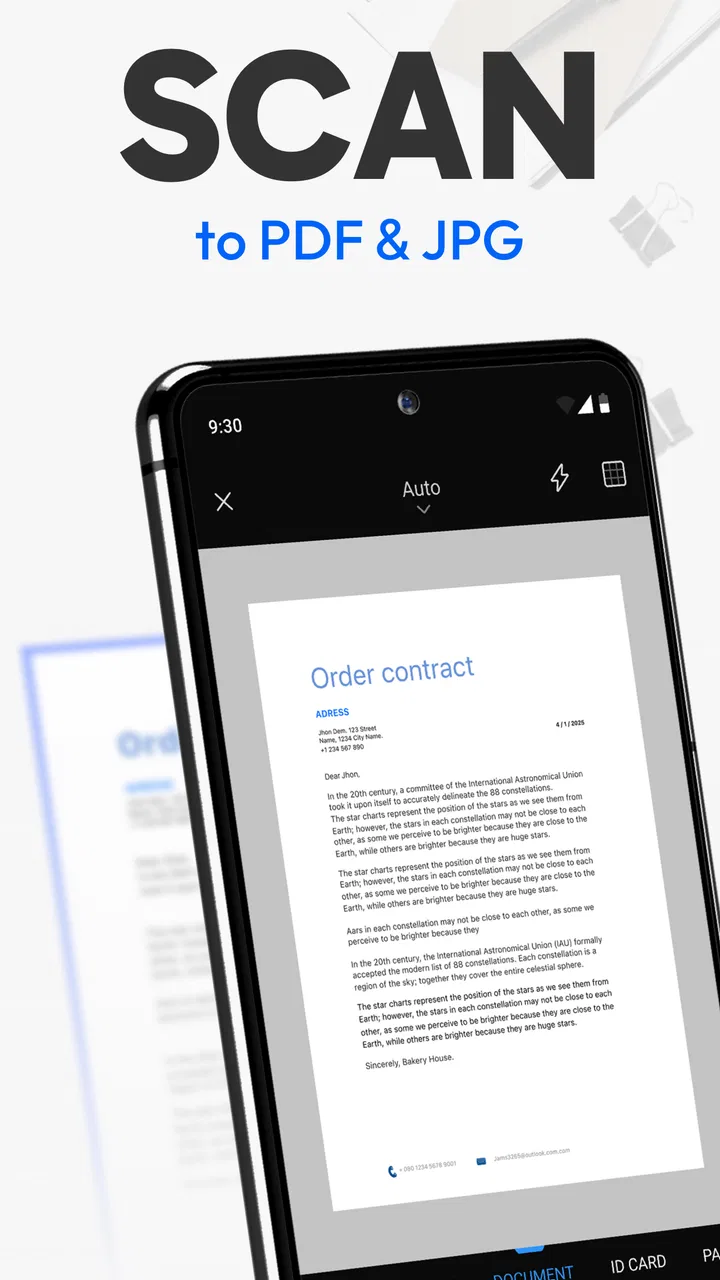
Tiny Scanner is an app designed to turn your mobile device into a portable document scanner. It allows you to scan documents, receipts, photos, and more into PDFs. The app uses your phone’s camera to capture images and then converts them into high-quality PDF files that can be easily shared or stored.
02Is Tiny Scanner free to use?
Tiny Scanner offers both free and paid versions. The free version provides basic scanning features, but the paid version unlocks additional functionalities such as unlimited scanning, cloud storage integration, and removal of ads. Users can choose the version that best suits their needs based on their scanning requirements.
03How secure are my documents on Tiny Scanner?
Tiny Scanner takes document security seriously. The app does not upload your documents to any cloud unless you choose to do so. It also offers password protection for your PDFs, ensuring that sensitive information remains secure. This makes it a reliable choice for users concerned about privacy.
04Does Tiny Scanner support cloud storage services?
Yes, Tiny Scanner supports integration with several cloud storage services. Users can easily upload their scanned documents to platforms like Google Drive, Dropbox, and Evernote. This feature is especially useful for backing up important documents and accessing them from any device.
05Can Tiny Scanner handle multi-page documents?
Absolutely! Tiny Scanner is equipped to scan multi-page documents, allowing users to compile multiple pages into a single PDF file. This feature is particularly beneficial for creating comprehensive documents or reports, making it a versatile tool for both personal and professional use.
Pros
- Fast and efficient scanning.
- User-friendly interface.
- High-quality PDF output.
- Supports multiple formats.
- Secure with password protection.
Cons
- Limited free version features.
- Ads in the free version.
- No cloud integration in free version.
- Occasional app crashes.
- Limited editing tools.

Tiny Scanner - PDF Scanner App
Gallery